Menu Bar App for macOS
Your
Apple TV
remote,
on your Mac
A full Siri Remote in your menu bar. Control navigation, volume, apps and power, all from your keyboard or mouse, without picking up your phone.
A full Siri Remote in your menu bar. Control navigation, volume, apps and power, all from your keyboard or mouse, without picking up your phone.
Features
Built for people who work at a Mac and want to control their TV without interrupting their flow.
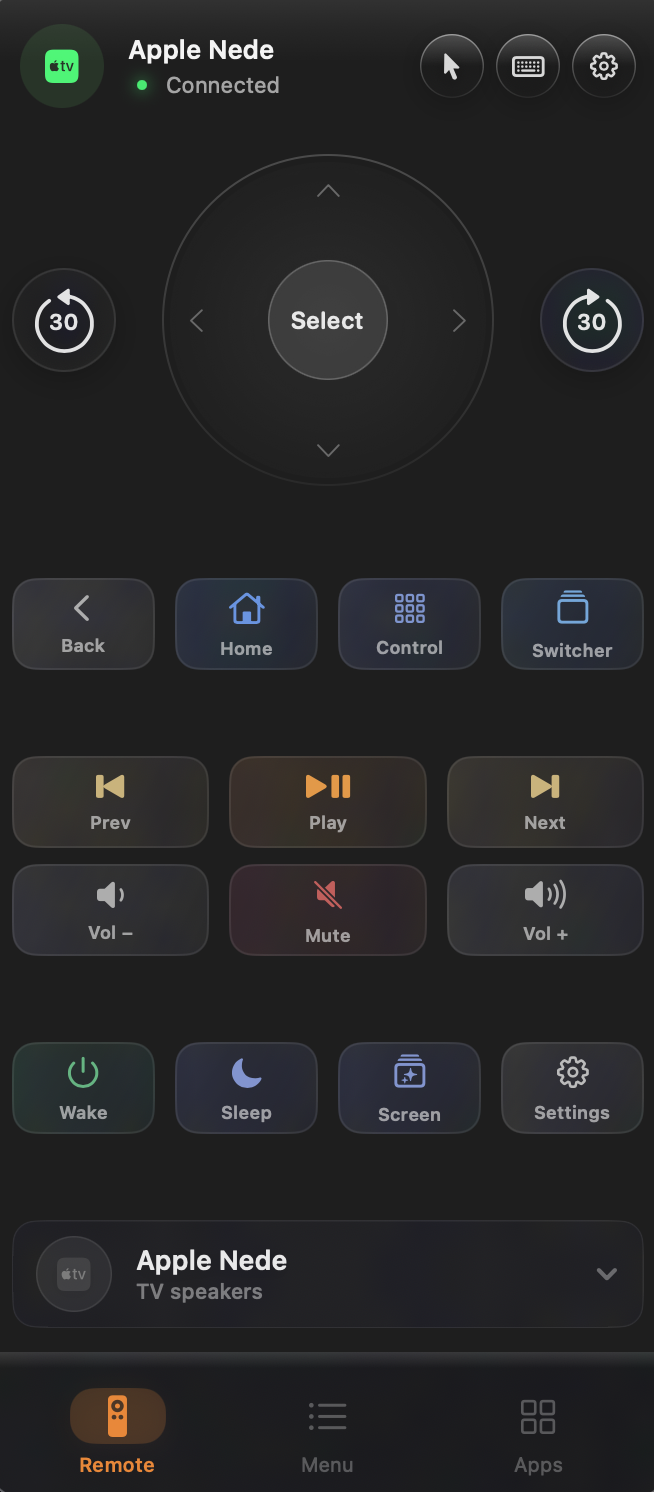
Full Siri Remote layout: clickpad, navigation ring, all buttons. Drag the disc to navigate.
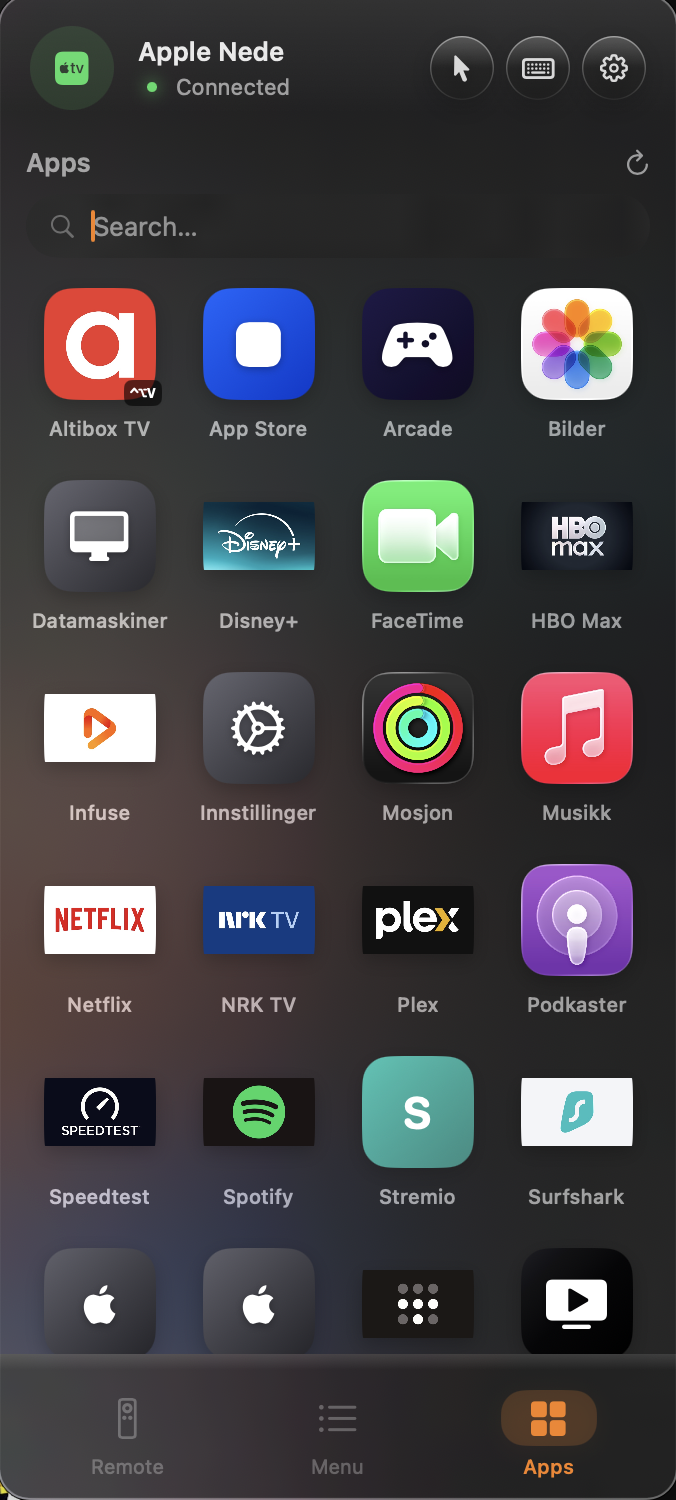
Browse every installed app, search by name, launch with one click or a custom hotkey.
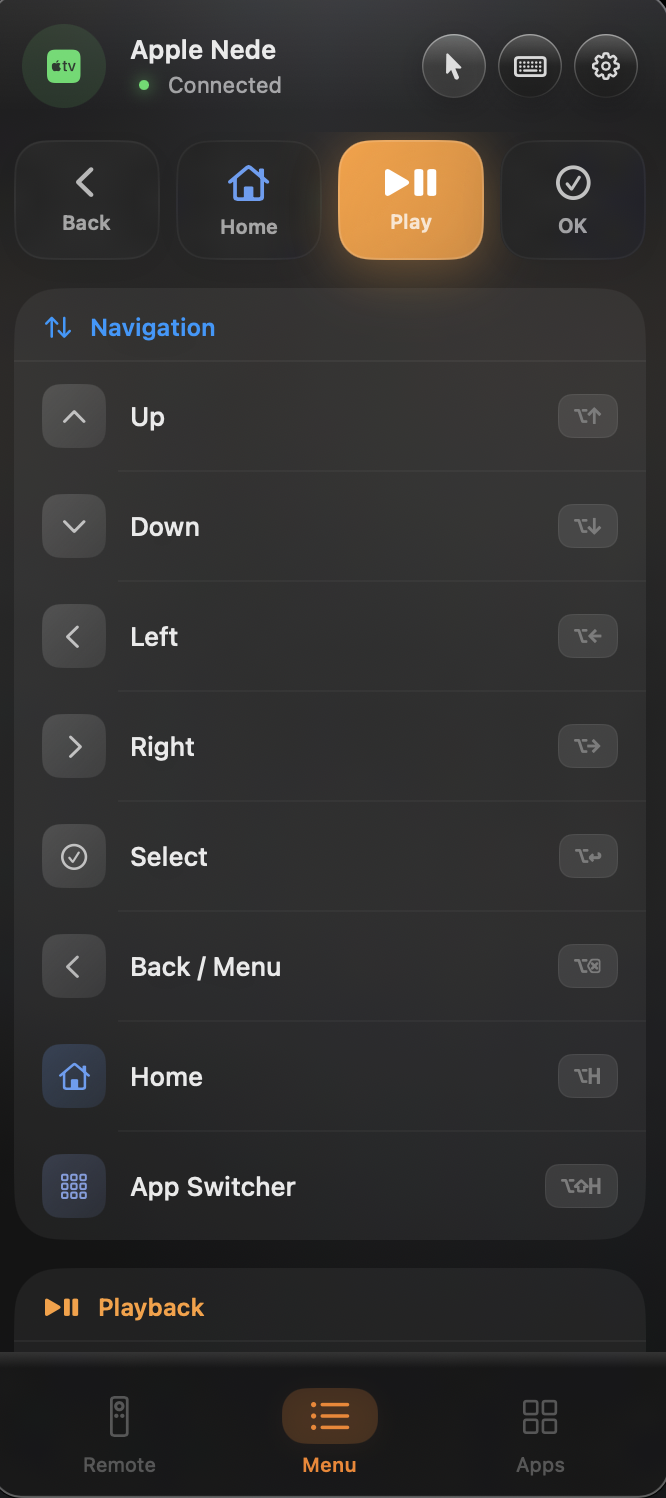
21 system-wide shortcuts active from any app: navigation, playback, skip, volume, power.
When the Apple TV shows a text field, a keyboard overlay pops up automatically on your Mac. Type normally. No on-screen pecking.
Rebind any command or app launch to your preferred key combo. Record with one click, takes effect instantly.
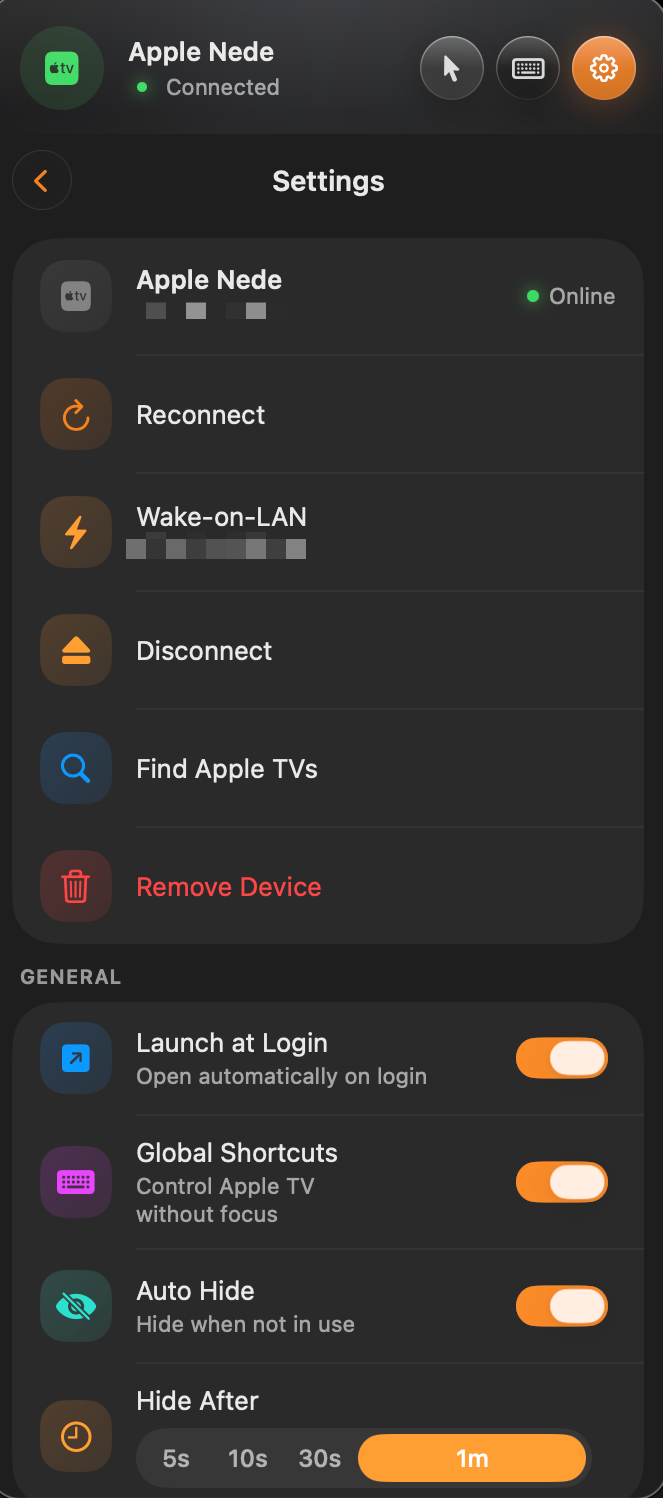
Drops back on when the network returns. Reconnects with exponential backoff and Wake-on-LAN.
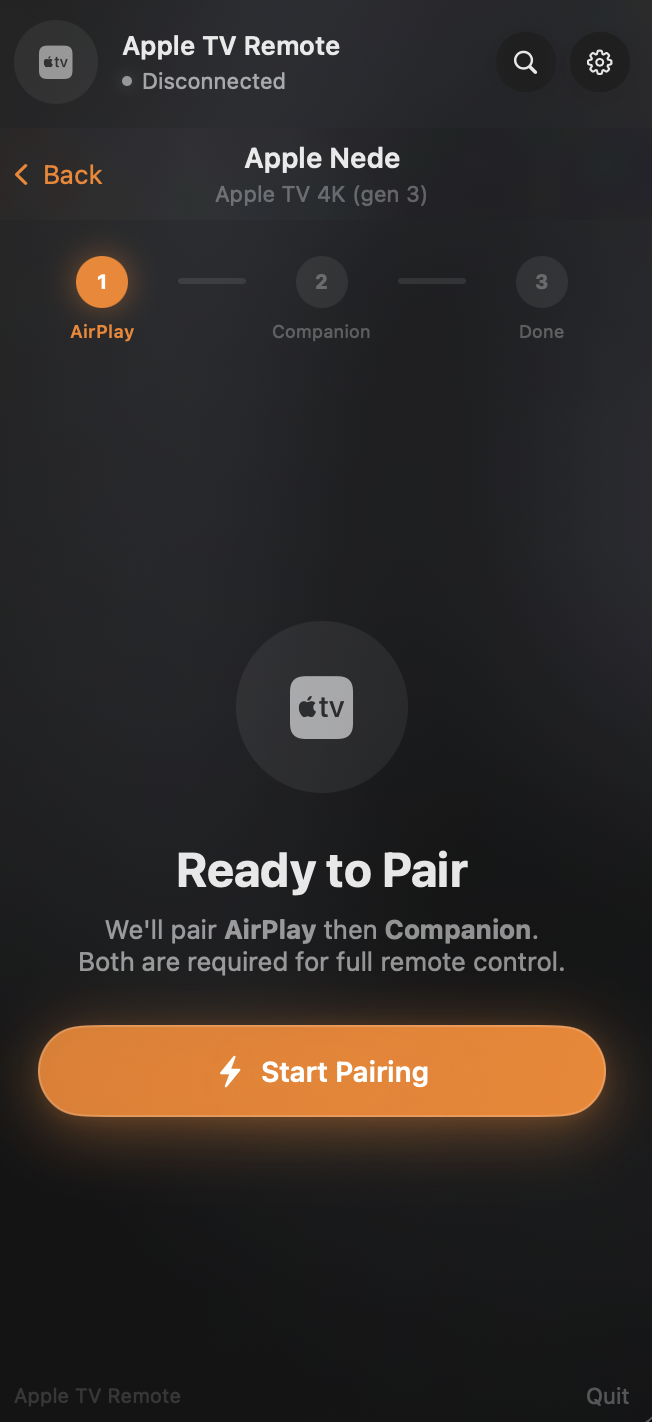
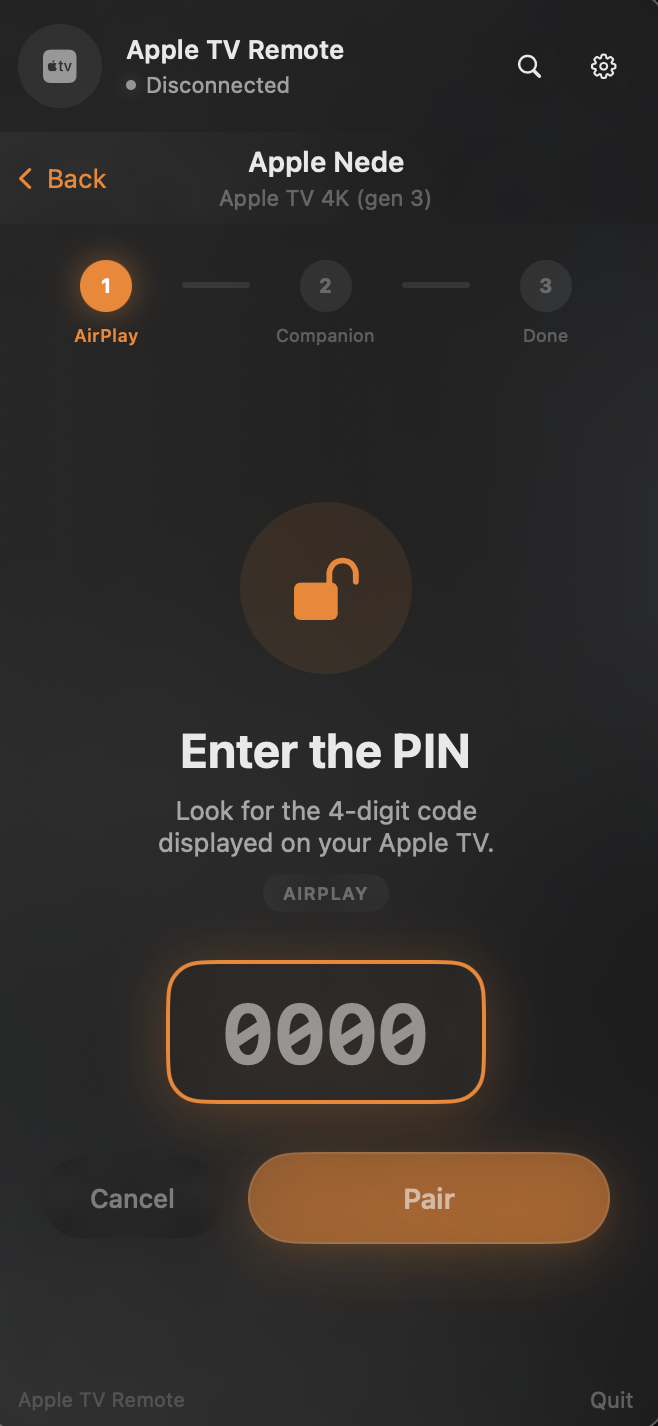
Pairs via Apple's secure PIN handshake. Credentials are stored locally on your Mac. Nothing leaves your device.
No dock icon, no clutter. Launches at login, lives quietly in your menu bar, opens instantly.
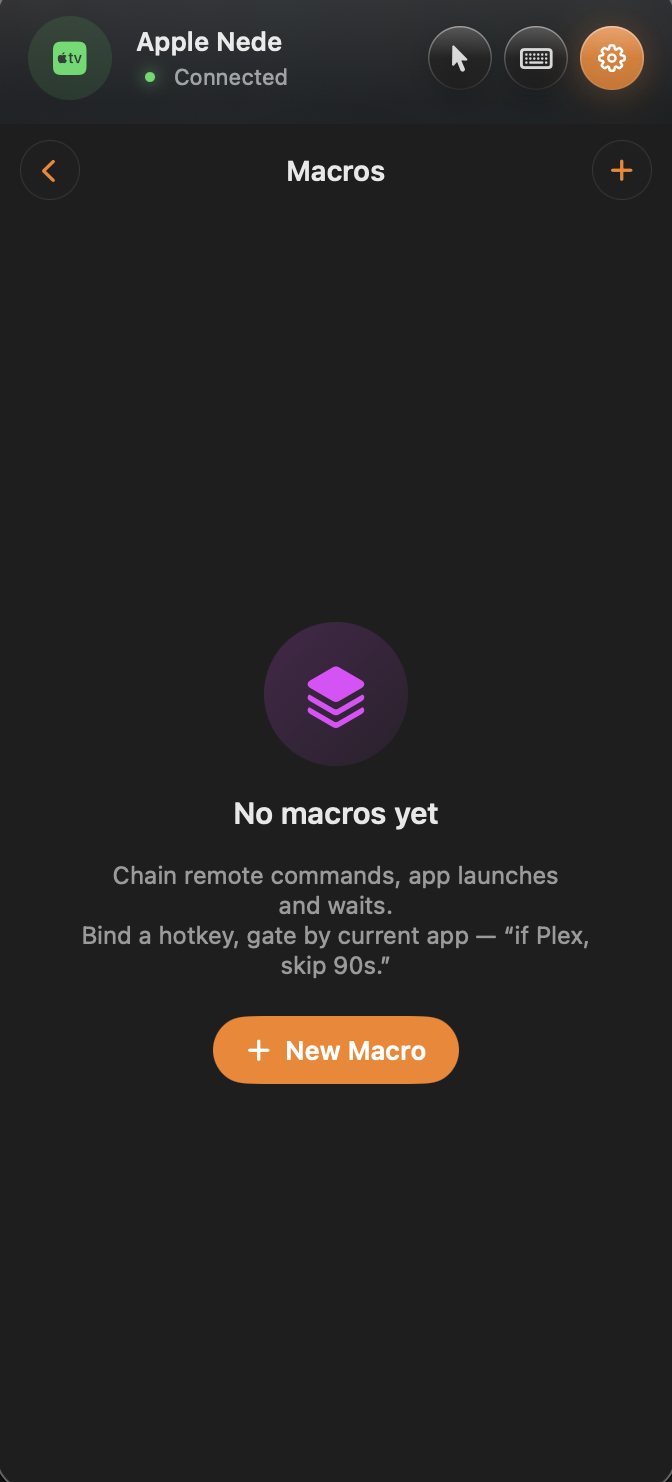
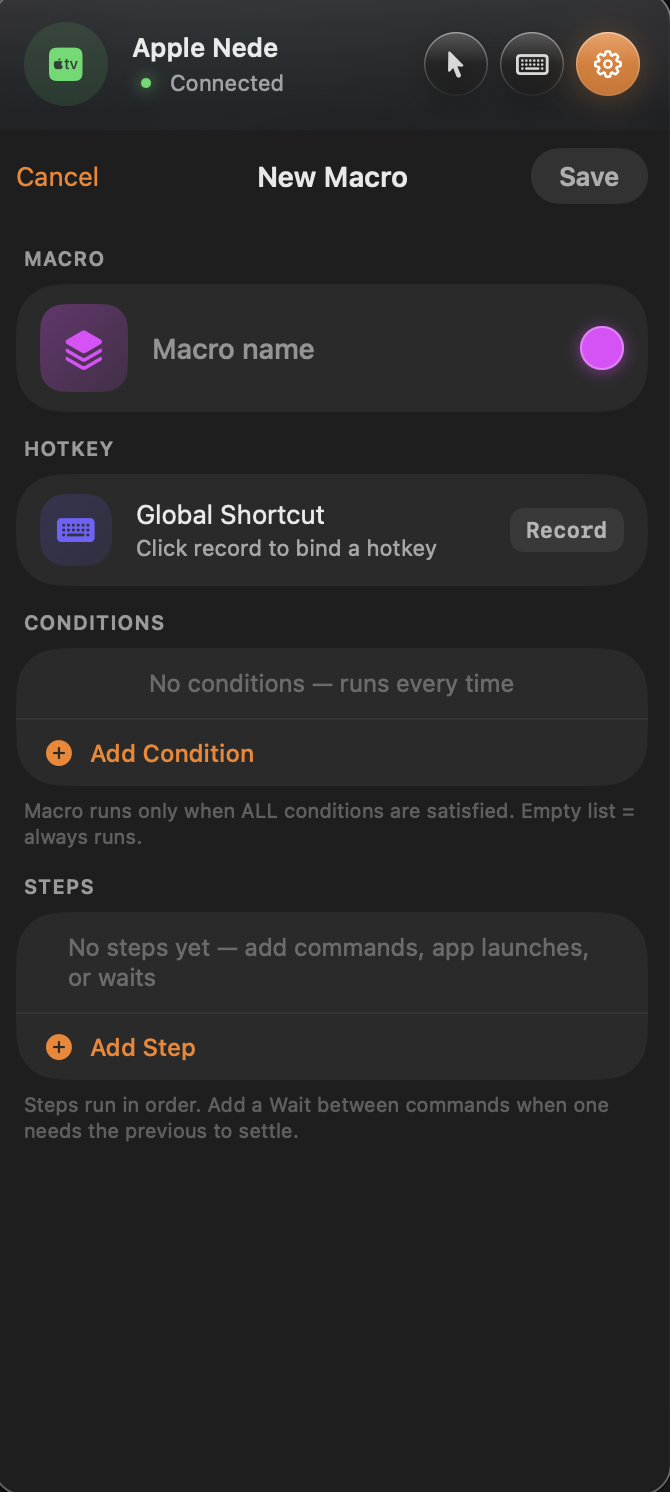
Chain remote commands, app launches, type-text and waits into a single sequence. Bind it to a global hotkey, gate it by the current Apple TV app. One press: open Plex, wait, click select, skip 90 seconds. The exact same hotkey can do something different in YouTube vs. Netflix.
Switch your Apple TV's audio output without leaving your Mac. Connect AirPods, HomePods or any Bluetooth device paired with your TV, or bounce audio back to the TV speakers, directly from the remote. Pin a favourite device for one-tap or one-shortcut switching.
Trackpad Mode
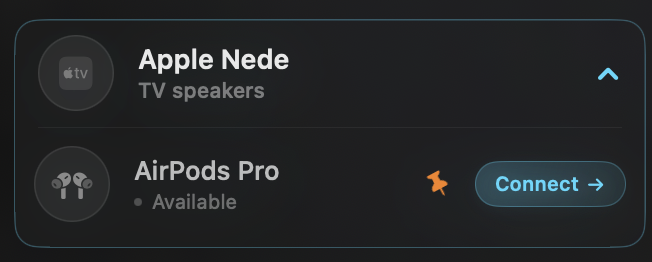
Turn your entire Mac trackpad into a live Apple TV controller. Move your finger, the Apple TV navigates. No window needed.
Hit the trackpad button in the remote. A full-screen overlay appears and the cursor disappears.
Physical trackpad movement maps directly to Up / Down / Left / Right. Sensitivity is adjustable.
Swipe left/right for Back and Home. Swipe up/down to adjust volume without leaving the mode.
Any click fires Select on the Apple TV. Press Escape or tap ✕ to return to your Mac.

Audio Output
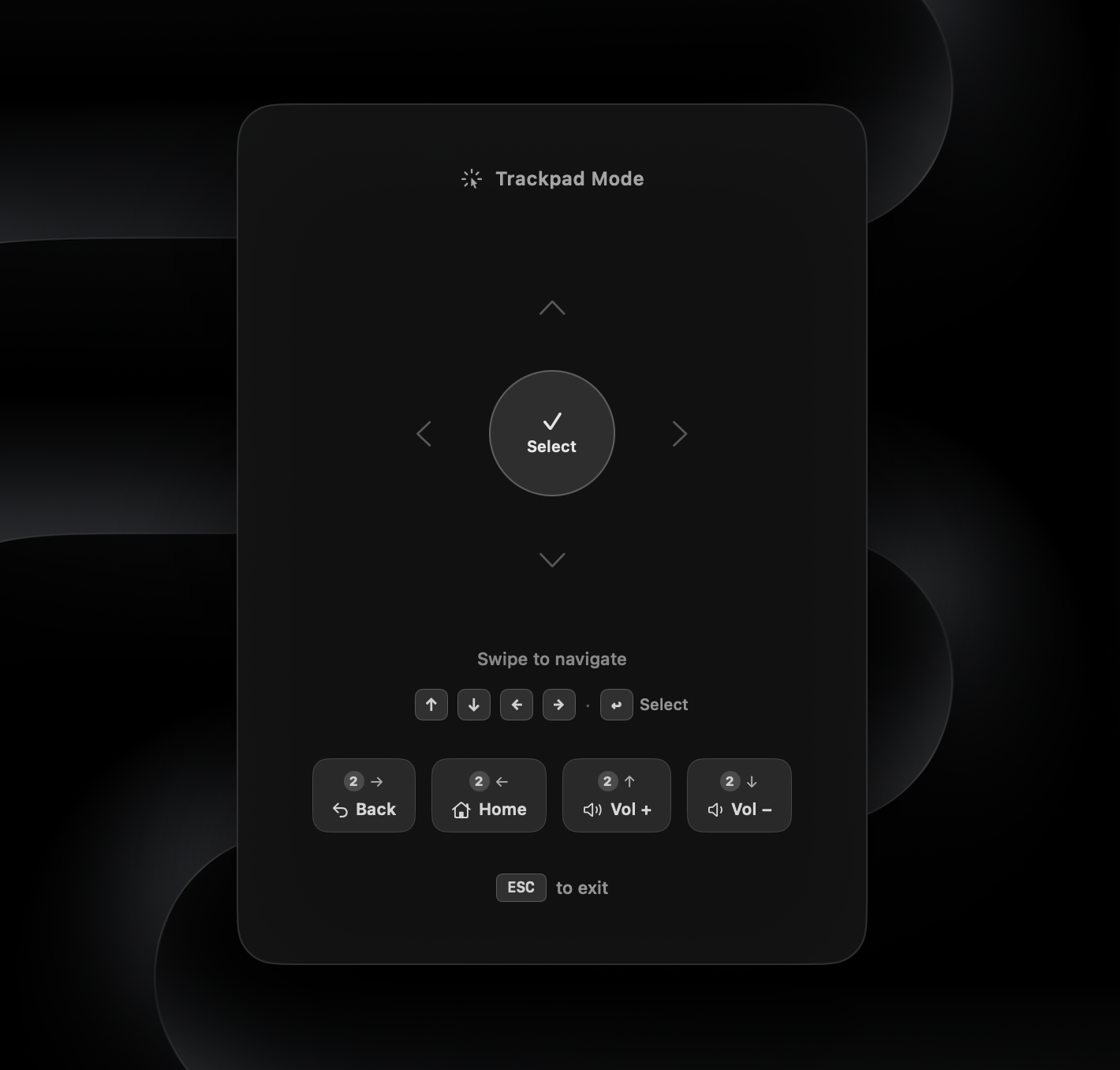
Control where your Apple TV sends its audio — TV speakers, AirPods, HomePod, anything, directly from the remote. No Control Center fumbling on the TV.
Tap the audio bar to see all devices currently paired with your Apple TV. One tap connects or disconnects.
Pin your AirPods once. They stay visible at the top of the picker even when not connected, ready to reconnect anytime.
Assign a global keyboard shortcut to "Toggle Favourite Device": press once to connect AirPods, press again to switch back to TV speakers.
When you switch output devices, the volume slider updates to reflect the new device's actual level. No surprises.
Macros
Build a sequence: open Plex, wait a beat, press select, skip 90 seconds. Bind it to a global hotkey. Add an "if current app is …" condition and the same key does the right thing in YouTube vs. Netflix vs. Plex.
Mix remote commands, app launches, typed text and waits. Reorder steps in place. The wait step gives the previous action room to settle.
One key combo runs the whole macro from anywhere on macOS, even when AppleTVRemote isn't focused. Record the combo with a single click.
"If current app is YouTube, skip 15 seconds. If Netflix, click select." The macro silently no-ops when conditions fail, so the same hotkey is always context-aware.
Pick an icon from a curated SF Symbols set, choose a color, run any macro on demand with the play button. No hotkey required.
Global Shortcuts
All shortcuts work system-wide, even when AppleTVRemote isn't in focus. Fully remappable in Settings.
Screenshots
Get started
Click the download button above. No account or sign-up required.
Open the .dmg and drag AppleTVRemote into your Applications folder, then launch it.
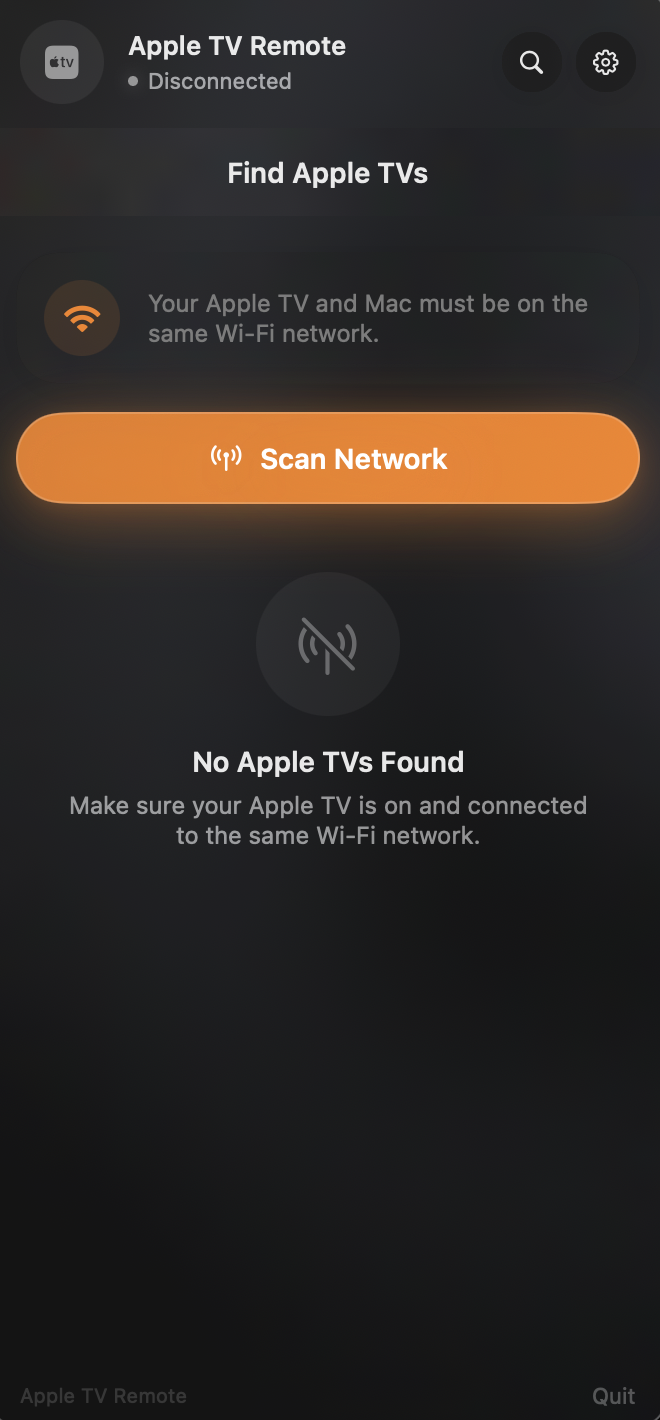
Click the menu bar icon → scan for devices → enter the 4-digit PIN shown on your TV. Done.
macOS 13 Ventura or later · Apple TV HD or 4K
 AppleTVRemote